Background
Put your recording on a wallpaper, a gradient, a solid color, or your own image, and soften it with background blur.
The background is everything around your recording: the canvas it sits on. A good one makes a plain screen recording look finished. Pick it in the Background tab, the first tab in the inspector. Everything here works on a recording you already made, and you can change it as often as you like before you export.
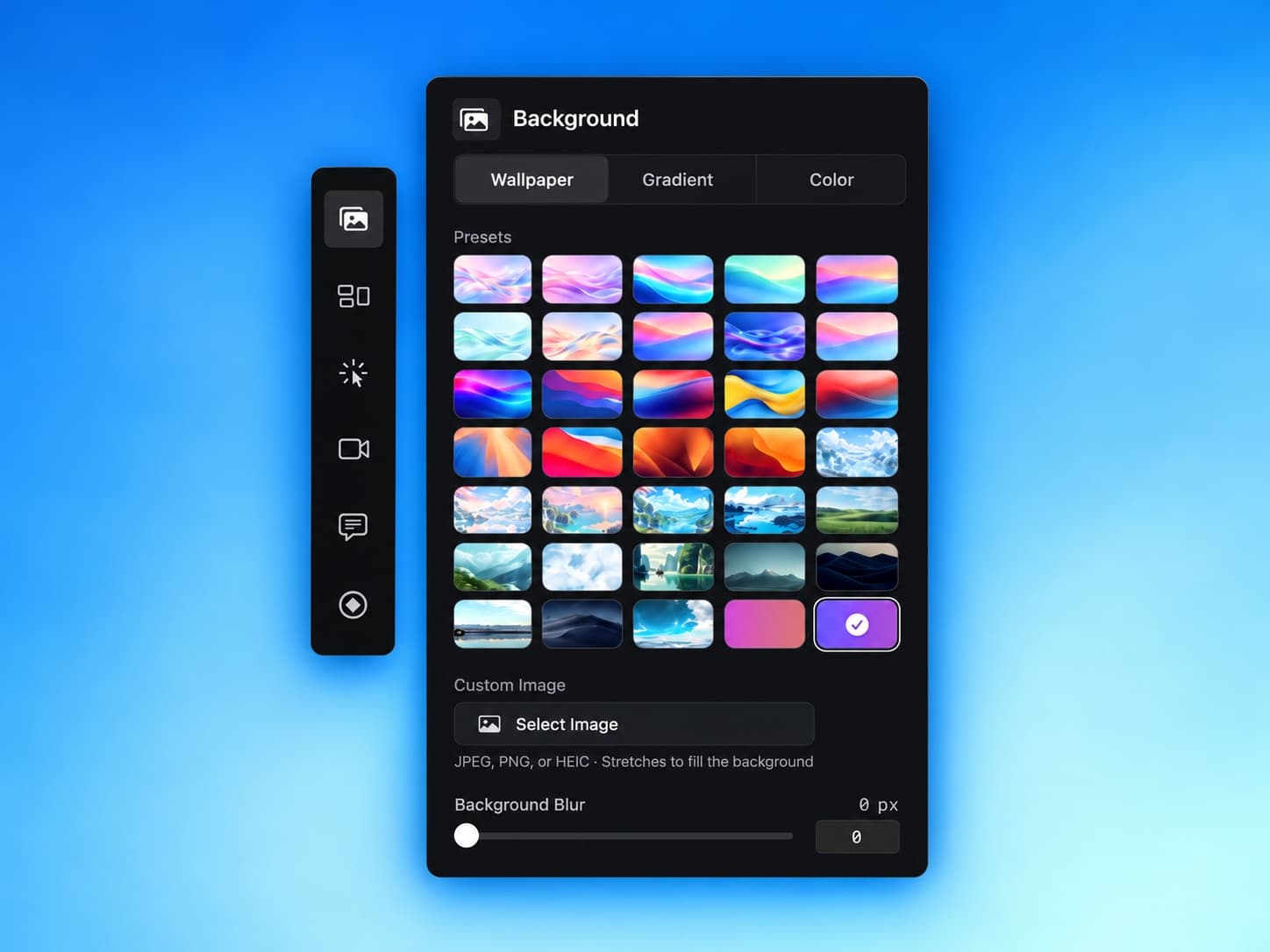
Three tabs across the top choose the kind of background: Wallpaper, Gradient, or Color. Each tab remembers your last pick, so you can flip between them to compare and come back to where you were.
Wallpapers
The Wallpaper tab has 35 presets: glassy waves, soft gradients, landscapes, and pixel-art scenes. Click one and the preview updates straight away.
Use your own image
Under Custom Image, click the image button (it reads Select Image or Change Image) and pick a JPEG, PNG, or HEIC file. It stretches to fill the background, so an image with the same shape as your video looks best. 16:9 for a widescreen video, for example. To go back to the presets, click the small x next to the button, or just pick a preset.
Custom Image needs a license
The wallpaper, gradient, and color presets are part of the free trial. Using your own image unlocks with a license.
Background blur
Background Blur sits under the wallpapers and softens the wallpaper or your own image, from 0 to 30 px. A little blur turns a busy photo into a calm backdrop, so your recording stays the thing people look at.
Gradients and solid colors
- GradientEditor > Inspector > Background > Gradient
- Fifteen smooth color blends, from warm sunsets to cool night tones.
- ColorEditor > Inspector > Background > Color
- Nine solid colors, plus a tenth tile that opens the macOS color picker for any color you like. A solid color is a good fit for product demos that follow a brand palette.
Save the look as a preset
Once the background and frame look right, save them together as a preset in the Layout tab. Next time, one click brings back the whole look.
Last updated: October 14, 2026