Cursor
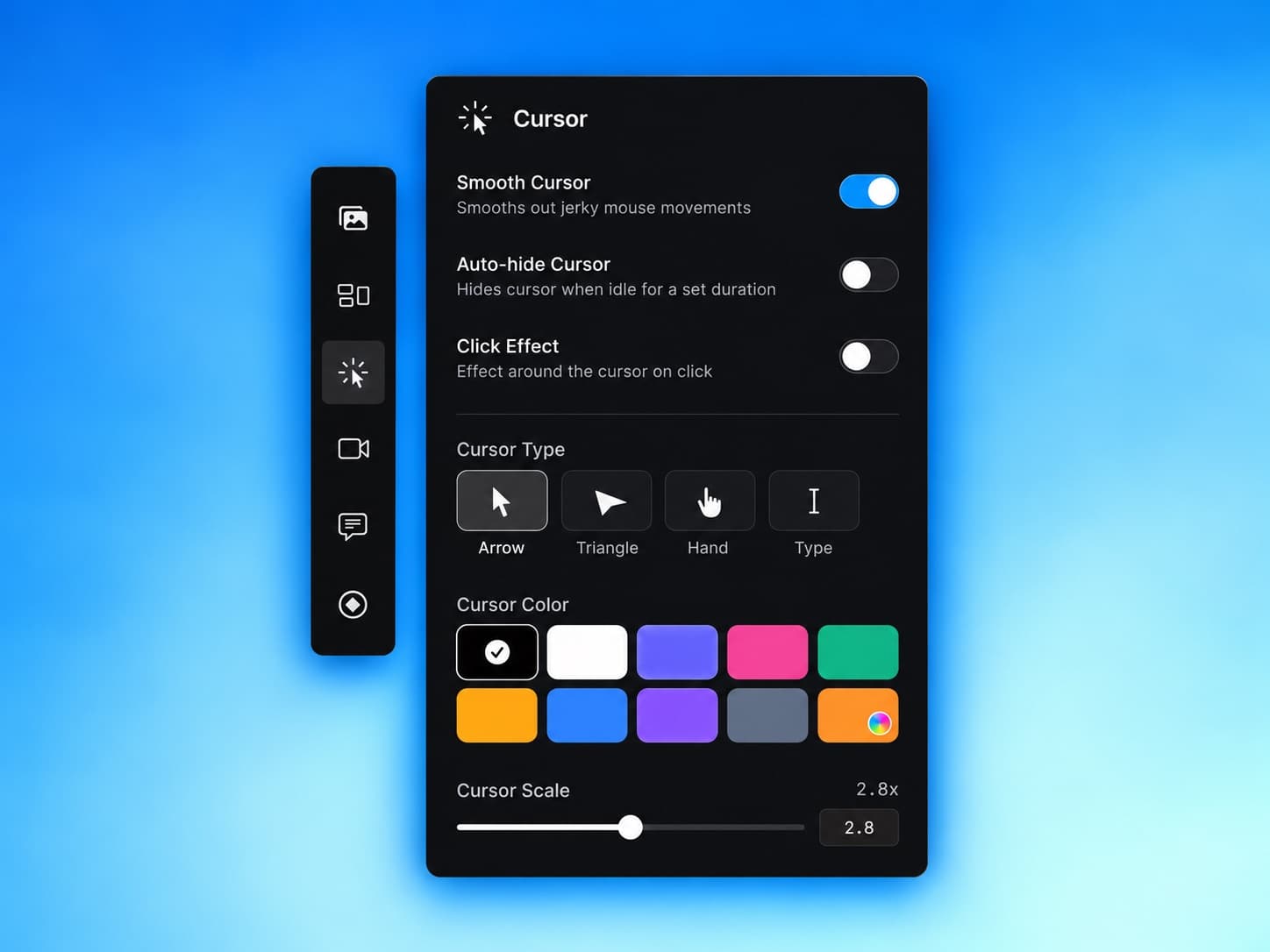
Make your cursor easy to follow: smooth out shaky movement, hide it when it sits still, show your clicks, and change its shape, color, and size.
In a screen recording, the cursor is the thing people watch most. Drishti records where it went and draws it fresh in the editor, so you can clean it up afterwards. Everything on this page works on a recording you already made. No retakes.
Smooth out the movement
Real hands wobble. Smooth Cursor irons out the small jumps and shakes so the pointer glides from one spot to the next. It is on by default and most people never touch it.
Turn it off when exact movement matters, for example when you are drawing a path in a design tool and the viewer needs to see every turn.
Hide the cursor when it sits still
A cursor parked in the middle of the screen while you talk gets in the way. Turn on Auto-hide Cursor and a Hide after slider appears. Pick anything from 1 to 5 seconds. Once the cursor has been idle that long it gently fades out, and it comes back as soon as you move it.
Show your clicks
Click Effect draws a small animation at the cursor every time you click, so viewers never miss the moment something happens. It is off for new recordings. Turn it on, then pick a style.
| Style | What it looks like |
|---|---|
| Ripple | A shockwave ring that travels out from the tip of the cursor. |
| Spotlight | A soft disc of color, like a highlighter pen over the click. It stays a touch longer, so it is easy to spot. |
| Spark | Eight short strokes bursting outward. Quick and lively. |
Under the style you can pick the effect color and set its Size from 50 to 200 percent.
Less is usually more
Auto Zoom already pulls the eye toward each click. A small Ripple or Spotlight in a color that stands out from your app is plenty. Save the bigger effects for fast tutorials where clicks come one after another.
Change how the cursor looks
- Cursor TypeEditor > Inspector > Cursor
- Arrow, Triangle, Hand, or Type (the text I-beam). This is the pointer shape used throughout the video.
- Cursor ColorEditor > Inspector > Cursor
- Nine ready-made colors, plus a tenth swatch that opens the macOS color picker. Drishti remembers the last custom color you chose.
- Cursor ScaleEditor > Inspector > Cursor
- Anywhere from 0.5x to 5x. Drishti remembers the size you set and uses it for your next recordings too.
Go bigger for small screens
If the video will mostly be watched on phones, or you are exporting 9:16, a larger cursor is much easier to track. Try somewhere between 2x and 3x and check the preview.
Your cursor choices stay put while you edit. Moving, deleting, or clearing cursor keyframes on the timeline keeps your click effect, color, smoothing, and auto-hide settings as you left them.
Last updated: October 14, 2026