Subtitles
Set subtitle style and position, edit the transcript, import or export SRT and VTT files, and cut video around a subtitle.
Set subtitle style
Open the Subtitle tab in the editor inspector. The switch at the top turns subtitles on or off. Choose the spoken language in Language, which is marked BETA. When subtitles exist, Regenerate Subtitles creates them again for the selected language.
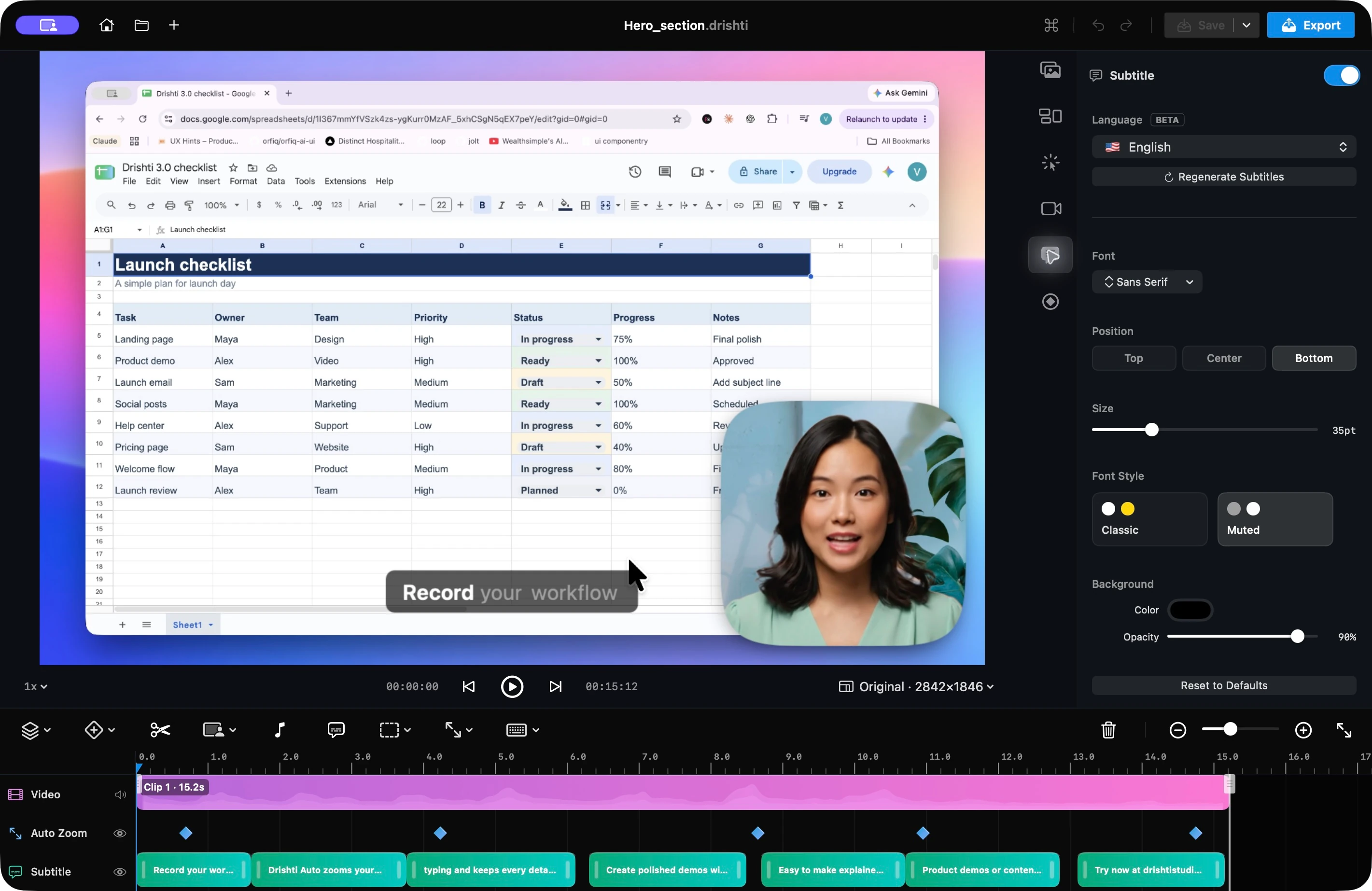
| Control | What it does |
|---|---|
| Font | Choose a font from the menu. The screenshot shows Sans Serif. |
| Position | Place captions at the Top, Center, or Bottom. |
| Size | Adjust the text size. The value is shown in points. |
| Font Style | Choose Classic or Muted. |
| Background | Choose the caption background color and set its opacity. |
| Reset to Defaults | Return subtitle settings to their defaults. |
Open the Subtitles window
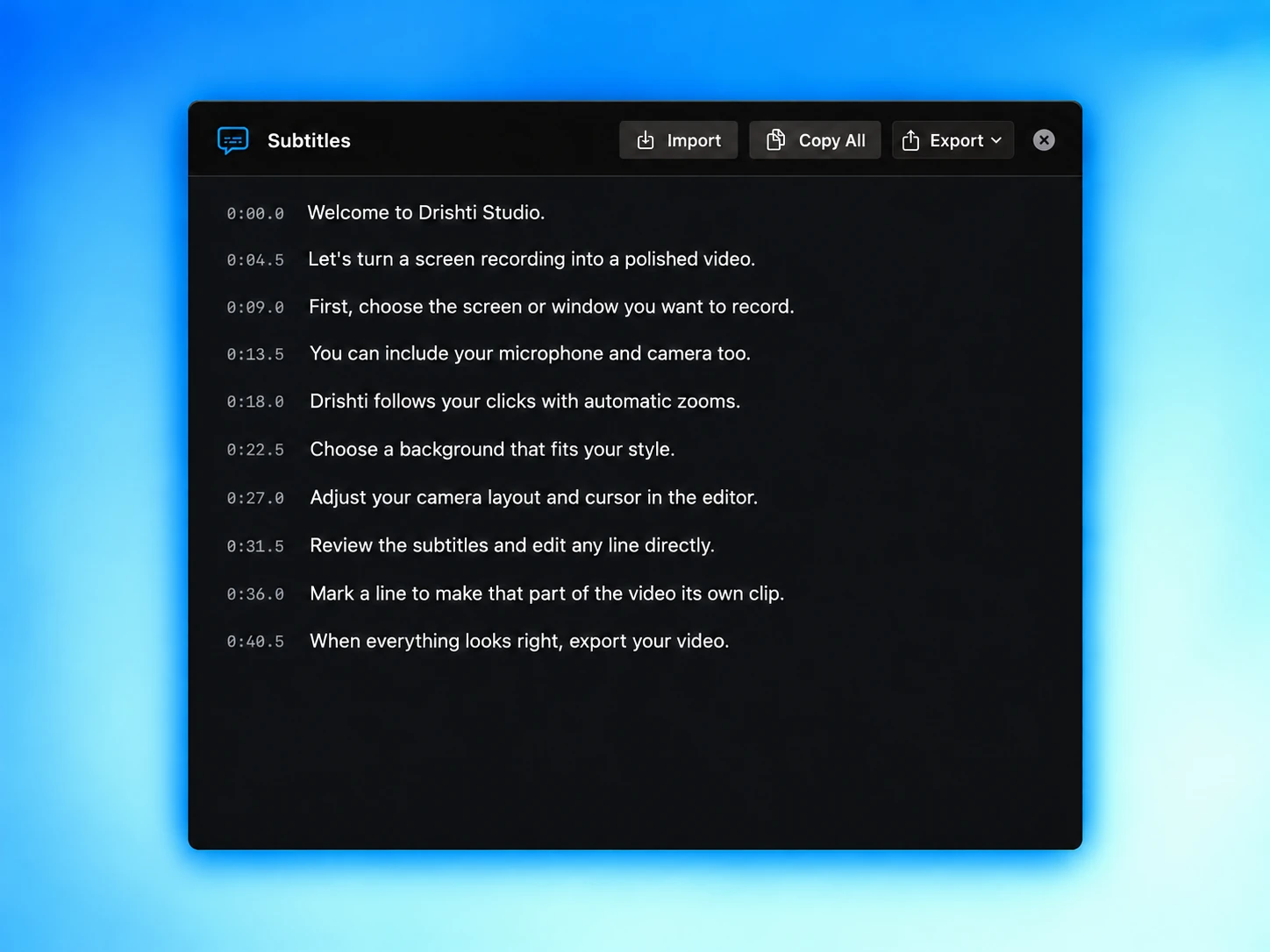
Click the speech bubble icon in the timeline toolbar, between the music note and dashed rectangle icons, to open the Subtitles window. Each line has a timestamp and editable text. If the list is empty, generate subtitles from the Subtitle inspector, or choose Import to load an SRT or VTT file.
Edit the transcript
Click a line to correct its text. The window keeps a working copy, so editing here does not immediately change the timeline. Once you make a change, a footer shows the number of unsaved changes, Discard, and Apply Changes. Apply Changes updates the subtitle pills on the timeline as one editor undo step. Discard returns the working copy to the captions present when you opened the window.
Closing with pending changes
If you close the window with unapplied edits, Drishti asks whether to apply them, discard them, or keep editing. Use ⌘Z and ⇧⌘Z to undo and redo within the window while it is open.
Cut video around a subtitle
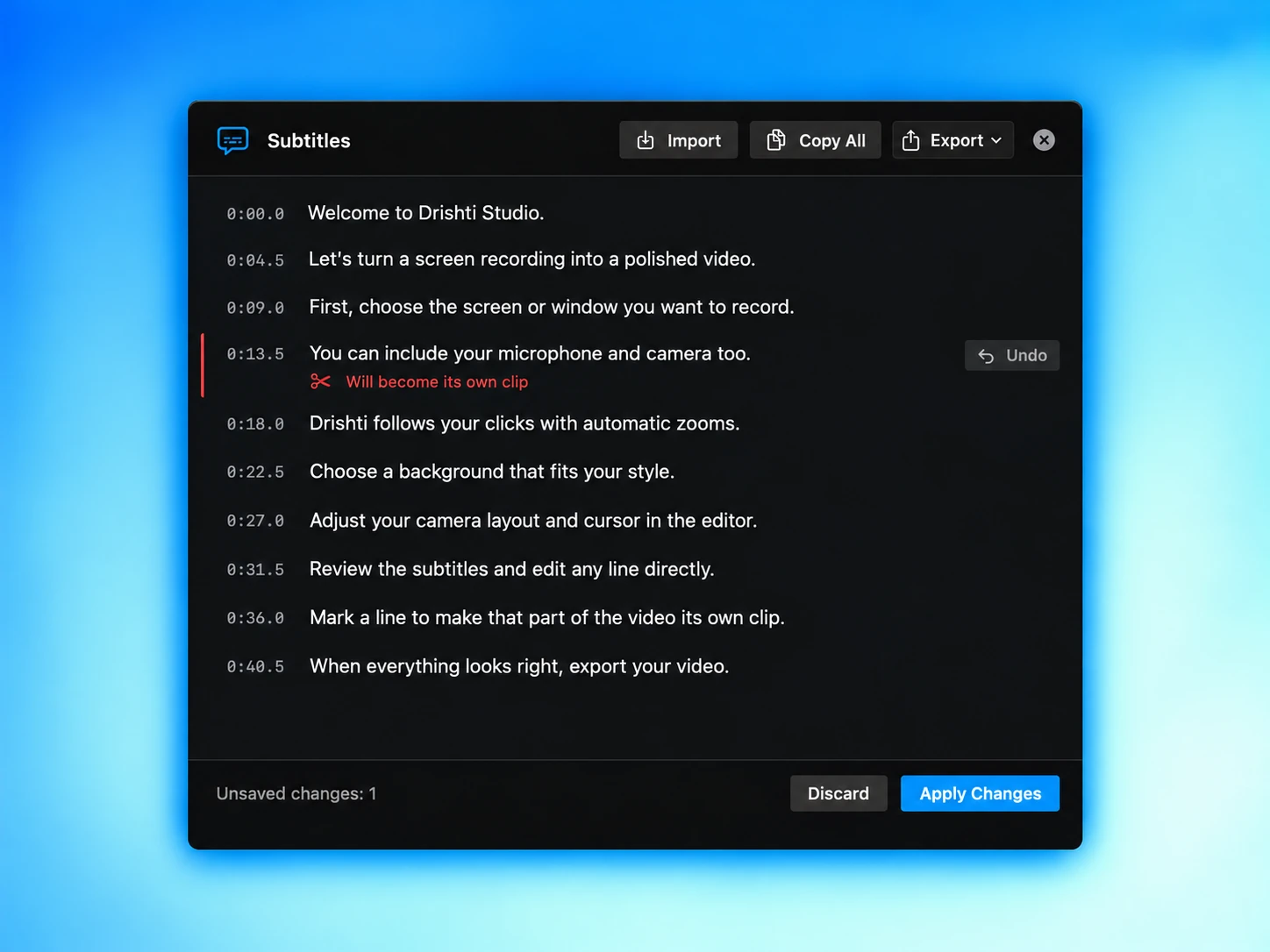
Hover a caption line and choose Cut. That line gets a red accent, the message “Will become its own clip,” and an Undo button. Its text stays visible and becomes read-only while marked. This prepares a split around that portion of the video; it does not delete the sentence or remove any footage yet.
- 1
Mark the line
Hover the sentence you want to isolate and choose Cut. You can mark more than one line before applying.
- 2
Review the marks
Use Undo beside any marked line to cancel it. Marked text is read-only so its split timing stays stable.
- 3
Apply Changes
Drishti splits the video around the marked lines and keeps their captions. Back in the timeline, select and delete a resulting video clip if you want to remove that footage.
Lines already removed from the video remain in this window with a strikethrough. Choose their Undo action to mark them for restoration, then Apply Changes to bring them back. The timeline also offers Restore Removed Part beside a cut.
Import, copy, or export captions
| Action | What happens |
|---|---|
| Import | Load an SRT or VTT file into the working copy. Review the import notice and transcript, then apply the changes to the timeline. |
| Copy All | Copy the current transcript as plain text. |
| Export | Choose SRT or VTT, then pick a filename and destination in the save dialog. Exported timestamps follow the edited video, including trims, removed sections, and playback speed. |
Text changes and video changes are separate
Correcting or clearing caption text changes the subtitles. To isolate footage, use Cut and Apply Changes. To remove footage, delete its video clip on the timeline. A Cut mark alone keeps both the sentence and the recording.
Last updated: October 24, 2026