Logo
Add your own logo or watermark to every video, place it in a corner or the center, and set its size, opacity, margin, and backing.
Put your logo on the whole video. Open the Logo tab in the editor inspector, the tab after Subtitles, choose an image, and it appears in the preview right away. Drishti never adds a watermark of its own; this is your branding, on your terms.
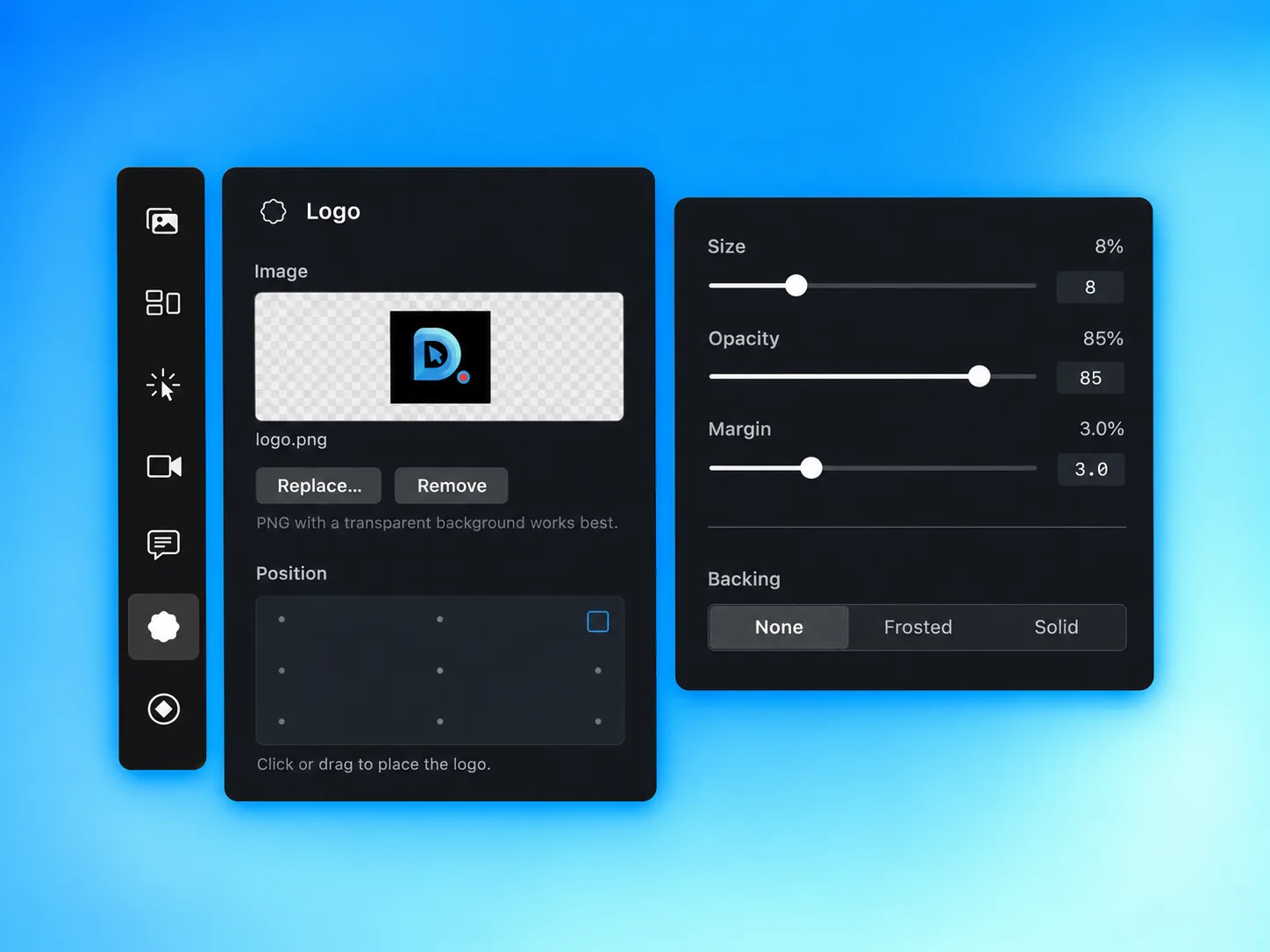
Add your logo
- 1
Choose an image
Click Choose Image and pick a PNG, JPEG, HEIC, TIFF, or WebP file. A PNG with a transparent background works best.
- 2
Place it
Click or drag in the Position frame to move the logo. You can also focus the frame and use the arrow keys.
- 3
Fine-tune it
Adjust Size, Opacity, and Margin, and add a backing if the logo gets lost on your video.
Drishti keeps its own copy of the image, so the logo keeps working if you move or delete the original file. To swap it, click Replace. To take it off, click Remove.
Position
Wide and square videos offer 9 spots: the 4 corners, the middle of each edge, and the center. 9:16 videos offer the 4 corners and the center, measured from the edges of the full frame whatever the camera layout. A logo set to an edge middle moves to the nearest corner in 9:16.
Size, opacity, and margin
- SizeEditor > Inspector > Logo
- Logo height, from 4% to 20% of the frame's shorter side, so it looks the same in wide, square, and 9:16 videos. Very wide logos stop at 60% of the frame width.
- OpacityEditor > Inspector > Logo
- From 10% to 100%. Lower it for a subtle watermark.
- MarginEditor > Inspector > Logo
- Gap between the logo and the edge of the frame, from 1% to 8%.
Backing
A backing is a rounded plate behind the logo that keeps it readable on busy or same-color video. None shows the logo on its own. Frosted blurs the video behind the logo. Solid uses an opaque plate.
With a backing on, Backing Color sets its tone. Auto checks your logo and picks a light plate for a dark logo and a dark plate for a light one, so a black logo never sits on a black box. Choose Light or Dark to override it.
Always on top
The logo is the top layer of the video, above captions, the camera, masks, and background blur. What you see in the preview is what the export shows.
Overlap warning
If the logo sits in the same spot as the camera bubble, or in the middle of the captions row, the Logo tab shows a warning with a Move to button that moves the logo to the nearest free corner.
Your logo in new projects
Drishti remembers your last logo setup, so new recordings start with your logo already on. Remove it in one project and new projects start without it. Style presets in the Layout tab change the look but leave your logo alone.
Logos stay on this Mac
The logo image is stored on your Mac, not inside the project file. If you open the project on another Mac, choose the image again. Adding a logo is free; only exporting a video requires a paid plan.
Last updated: November 22, 2026